Find the culprit for blue Screen of death!

My laptop’s built-in adapter became faulty about an year ago. At that time, I bought D-Link  Fast Ethernet USB 2.0 adapter (DUB-E100). Truly speaking, this adapter has given me a lot of grief since then. I tried it on both XP and windows 7 but nothing improved. What’s ugly about it is that it makes window crash bringing blue screen of death all over my screen. This usually occurs when you plug in the adapter while some other device already plugged in to some other USB port, however this occurs occasionally only. Below is the picture of my cute little external adapter.
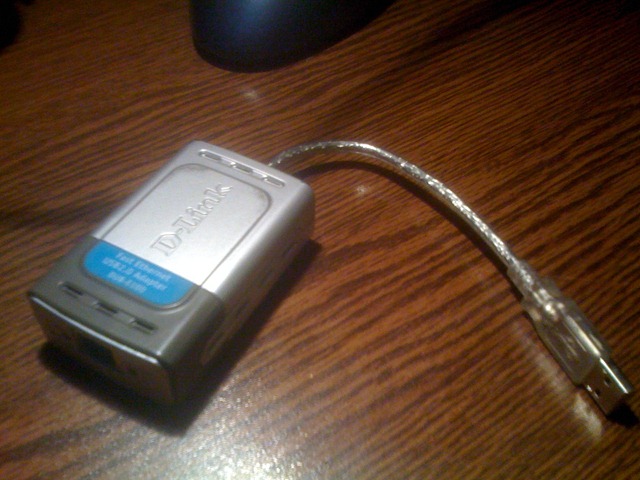
IMG_0692

The purpose of this post is not to show that the adapter is a culprit but I wanted to introduce to you “WhoCrashed” software which can dump the debug information during the crash and then show it to you later on when you run the software on a next run. One thing to note is that the blue screen of death is not always caused by a hardware failure rather it is mostly caused by the device drivers or the kernel modules. In case of my adapter, usually the following error occurs “DRIVER_IRQL_NOT_LESS_OR_EQUAL” which means that the device has referenced an invalid address in the memory.

The latest version of “WhoCrashed” is now available for Windows 7. When you run the software and hit “Analyze” button, the dump data is displayed showing debug information along with the reason why your PC crashed.
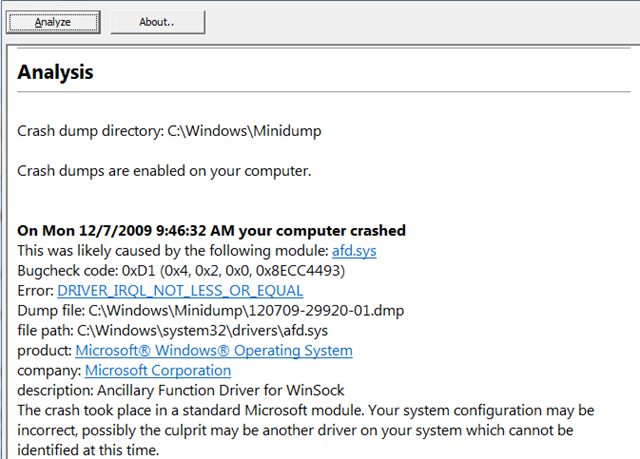
WhoCrashedAnalysis

Download WhoCrashed

By the way, Windows 7 also shows you information about the last crash and allows you to search online for a solution to the problem.
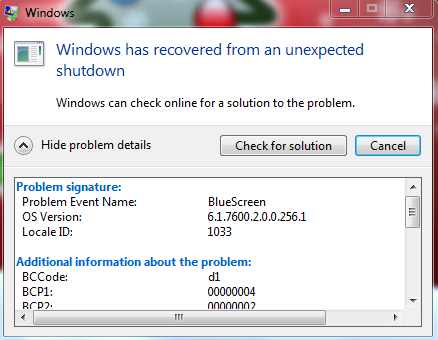
BlueScreenError

Write an email to the author of this post at adnan@techskipper.com

How to change MAC address in windows 7

Today, I installed a software which I activated on a different PC before but it gave an error of MAC address check failure. It was actually checking MAC address from license. Right after that, I started online search for a utility to change MAC address in windows 7. In XP, there were free utilities available on internet which changed MAC address but I couldn’t find such utility for windows 7.

Here is a method of changing MAC address in windows 7, Go to Control Panel>>Network and Sharing Center>>Change Adapter Settings. Then right click the adapter whose MAC address you want to change, go to its properties.

LocalAreaConnection 

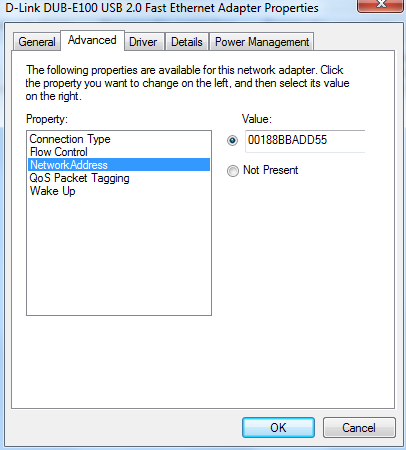
The properties window will pop up, click “configure”. Click “Advanced” tab and choose “Network Address”. Write the new MAC address in a box under Value.

ChangeMACAddress 

Please note that some of the device drivers provide an option to change the MAC address but some don’t. I have 2 network adapters, one is D-Link DUB-E100 while the other one is Broadcom NetXtreme 57xx Gigabit Controller. The former one allows to change the MAC address directly but the later one doesn’t. To change the MAC of such an adapter which doesn’t have such option, you will be required to modify in registry.

Procedure for changing MAC address through registry: 

RegistryEditor 

Step 1: Go to Start>>Run and execute “regedit” to open up a registry editor.

Step 2: Navigate as follows:

[HKEY_LOCAL_MACHINE>>SYSTEM>>CurrentControlSet>>Control>>Class>>{4D36E972-E325-11CE-BFC1-08002BE10318]

ChangingMACThroughRegistry

As the above image shows, you will see a lot of options like 000, 001 etc under 4D36E972-E325-11CE-BFC1-08002BE10318. Here you will have to choose the option which matches your current MAC address. For example, my current MAC is 00-18-8B-BA-DD-55, I will choose 0018 since the first four HEX numbers of the MAC are 00-18. When 0018 is clicked, it will show some files on the right side as shown below.

ModifyMAC

Right click the “Network Address” and choose “Modify …”. In a new window which pops up, write a new MAC under Value data.

EditString

Click OK. Disable and then enable your adapter and check your new adapter MAC via ipconfig -all command to be run on a Command prompt. That’s all !

Write an email to the author of this post at adnan@techskipper.com
Speak! and let IPHONE write it for you !

A few days back, I had to write a lengthy email while travelling. In routine use, I like to write short texts and emails with tapping on iphone screen but I found it to be boring and time taking to write long emails. I wished for an application which could help me with this mess and to my amaze Nuance Communications have made this wish a reality by releasing its application for iphone know as “Dragon Dictation”.

DragonDictation 

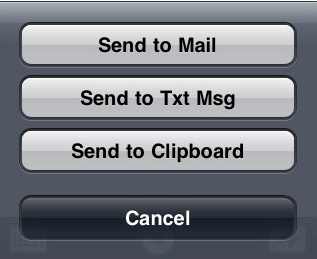
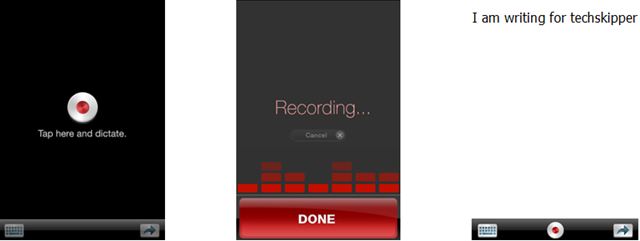
The software is very user friendly and extremely easy to use. Just open an application, hit record button and start speaking, Dragon Dictation will send your speech to software developer Nuance’s server, whose algorithm analyzes your speech and then the application shows you in written form what you spoke. Then, you will have an option to send the text via SMS or an email. You can also keep the text in the clipboard to paste it anywhere else.

DragonDictationDemonstration          options

The software is quite fast and accurate. As per Nuance Communications, the software is about 5 times faster as compared to typing on a computer.

Dragon Dictation is an easy-to-use voice recognition application powered by Dragon NaturallySpeaking that allows you to easily speak and instantly see your text or email messages. In fact, it’s up to five (5) times faster than typing on the keyboard.

One thing which I noticed is that it censors many words like it gives * for F word. Due to this feature, it has got a rating of 4+ on an application store. It is a free application but currently only available for US iTunes store.

Download Dragon Dictation

Write an email to the author of this post at adnan@techskipper.com

Google sues online money scammers tricking people in Google’s name

GoogleMoneyScam

Google has sued a bunch of scammers using Google name to trick people by publishing stuff like “Use Google to Make 1000s of Dollars”, “Easy Cash with Google” and a lot more. As we know, internet is full of such scammer websites and it’s almost impossible to run after each of them. So, Google step to sue some of these scammers might be an attempt to cool down angry consumers already beaten by the scam. But from a user point of view, Google will be appreciated since users will feel much secure and confident by this step. To open up a full scale war against scammers, Google has also announced to take those sites out of their index which will give poor user experience or are harmful. Google has mentioned on its official blog:

Even as we’re taking legal action to try to cut these sites off at the source, we’re still working constantly to remove scammy URLs from our index, and we’ll permanently disable AdWords accounts that provide a poor or harmful user experience, whether or not they use Google’s trademarks illegally. That said, we can’t guarantee that schemes like these won’t pop up, like the proverbial "Whack-A-Mole", someplace else online — either on a different network or under a different name.

That looks to be a good stuff but to make a reminder, with so many scammers spread throughout an internet, it’s solely our responsibility to verify the website from many sources and online communities if their offer appears too good to be true.

Currently, Google has sued Pacific WebWorks and several others. Google has mentioned the following names to be a suspect in spamming:

Names to be wary of: Google Adwork, Google ATM, Google Biz Kit, Google Cash, Earn Google Cash Kit, Google Fortune, Google Marketing Kit, Google Profits, The Home Business Kit for Google, Google StartUp Kit, and Google Works.

Lastly, there is no shortcut which allows you to earn money with zero efforts. It’s rightly said that there is no such thing as a free lunch in this world. People do earn a lot of money from an internet but it’s possible only when you provide some service to the people like providing them with some useful products or writing a good stuff through which people can take benefits.

The purpose of such reports is to create awareness among people so that many can avoid such online traps in a difficult economy time.

Write an email to the author of this post at adnan@techskipper.com

Monitor your PC screen through IPHONE

“Telescreen” is a software which allows you to monitor what’s going on, on your PC. You might be an engineer who wants to hang out after a long activity and relax with a PC monitor in your hands showing the installation progress or you might be a parent who wants to peep into what your kid might be doing on an internet, this software is made for you.

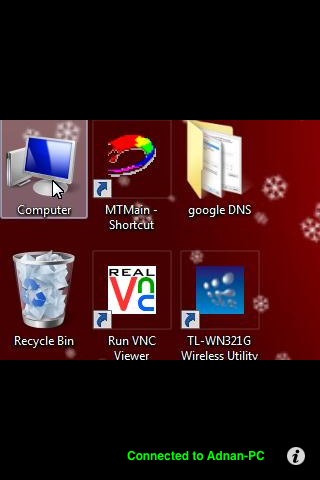
It works with a wifi, so you can monitor the screen of your PC within the wifi range. You can connect the wifi of your PC with your iphone and run the software which will detect the connection automatically. I already described a detailed process of connecting PC wifi with iphone, you might want to have a look. One problem which I faced while using the software was that I was only receiving a small square portion of my PC screen. On the other hand, the PHANTOMBILITY website claims that you will be able to monitor entire screen of your PC but I am not sure if this happens. If you use this software, please feedback if it works fine on your iphone. Please check the following snapshot of my iphone showing the portion of my screen which I was able to monitor (as I moved my cursor, the monitoring screen also moved but showed only a small portion).

Telescreen

The right bottom shows a green color message showing that it is connected to Adnan-PC. Initially, it will show a red message showing “not connected”, you will have to tap on a little information icon on the right bottom to make it search for a wifi connection.

You will have to install 2 softwares, one on iphone and other on PC. The software to be installed on PC is free, however you will have to purchase telescreen for iphone from iTunes.

Download supporting software for PC

Get Telescreen from iTunes Store

( write an email to the author of this post at adnan@techskipper.com )

Jailbreak iPhone 2G 3G 3GS 3.1.2 on Windows Custom Firmware

One of the two iPhone genius Dev team have released new iPhone 2G 3G jailbreaking tool Pwnage 3.1.4 for iPhone 3.1.2 firmware. For iPhone 3G & 3GS users it is recommended to use Pwnage tool in order to retaining current baseband (without changing it to 05.11.07).

Here you go with the Jailbreak and Unlock guide for your iPhone 3GS with firmware 3.1. First of all download a custom firmware, that can also be created using Dev team Pwnage Tool that strips out the baseband update from the upgrade.

See if you are eligible for Pwnage tool or not?

  1. I own an iPhone 3G,3GS 3.0/3.0.1 redsn0wed   : You are in
  2. I own an iPhone 3G,3GS 3.0/3.0.1/3.1 pwned    : You are in (if you have already pwnt by using the Pwnage Tool)
  3. I own an iPhone 3GS 3.1/3.1.2 blackra1ned       : You can jailbreak but not the unlock
  4. I own an iPhone 3GS 3.1/3.1.2 non jailbreaked : Jailbreak (Blackra1n) first, then you are in

Step by Step Guide to Jailbreak iPhone 2G 3G 3GS on OS 3.1 Windows

Step One: Download the iPhone custom firmware 3.1 and place it in a directory you can remember. The custom firmware are already Jailbreaked and also contain “Cydia” that is required for unlocking.

Download iPhone 2G 3G 3GS 3.1.2 Custom Firmware: Google is your F-R-I-E-N-D

Web links to custom IPSWs cannot be provided for legal issues, the software in them is copyrighted by Apple.

Step Two: Switch your iPhone in “Recovery Mode”. If you don’t know how to do it, please following below instructions.

  • Switch off your iPhone and make sure that is not connected with cable/dock.
  • Hold down the home button.
  • While holding down the home button connect your iPhone to a computer (the commuter must have iTunes installed on it) with a cable (easiest) or dock.
  • Keep holding down the home button until you see a connect-to-iTunes screen. Now you are now in the recovery mode.

Step Three: Launch iTunes and click on your iPhone in the left frame. Now hold the shift key and then click Restore button (for Mac hold Option key on your Mac and then click the restore button). In the dialog box that pops up, browse and select the downloaded custom firmware file and now let iTunes do the rest for you. As iTunes finishes the upgrade process you haven’t need to jailbreak it again since it was already jailbroken.

Note: This procedure is tested by many iPhone users but we are not responsible for any damage. Do this at your own risk, and if you have any problem, question feel free to ask us on techskipper.com.

Write an email to the author of this post at jawad@techskipper.com

Recover your precious data from damaged CD/DVD full of scratches

CD and DVD are included in a reliable source for storing your data. Is that so? That might be true to some extent but what about a situation when your important data is no more recoverable from a CD or a DVD due to scratches? I guess, you will be categorizing CD/DVD as an unreliable storage if such a thing happens to you. Well, be patient and I hope after reading this article, you won’t be destroying your CD or a DVD right away. You surely will hold your hands when you come to know that it’s possible to recover some important data from your damaged DVD.

CD recovery toolbox” gives you a solution to a damaged media. It recovers important files and folders from a media which is not directly in a readable position. Well. of course all your data might not be recoverable if the CD or a DVD is severely damaged. However, as always,  something is better than nothing and still you have some hope of recovering data – remember?

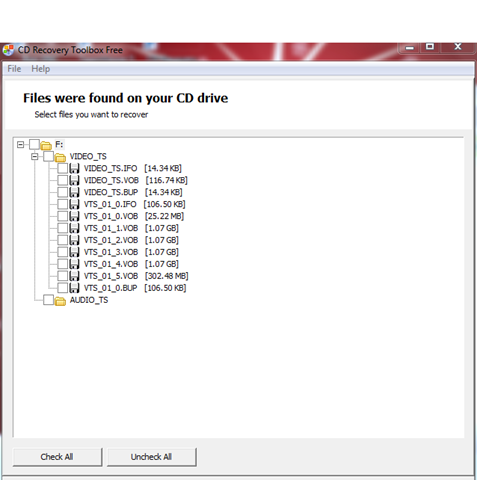
The installation and usage, both are pretty simple. It runs a wizard helping you step by step. Initially, the software will detect the files and folders from the media and then ask you to choose particular data , which might be important for you, to recover.

CDRecoveryToolboxFreeSetup

Most importantly, it is a free software. You can download it as under:

Download CD Recovery Toolbox

( write an email to the author of this post at adnan@techskipper.com )

Latest Email Spam: Fraudulent emails telling to register for CDC-sponsored vaccination program

McAfee and CDC (Centers for Disease Control and prevention) have given warnings to the users to avoid an email claiming to contain a register information for state vaccination program. The email will claim that CDC has launched a vaccination program to deal with a latest H1N1 outbreak and people with ages greater than 18 must register. The register button will download Zeus Trojan on your computer.

To make things clear, CDC has announced that there is no such national program. On it’s website, CDC has mentioned:

The CDC has NOT implemented a state vaccination program requiring registration on www.cdc.gov. Users that click on the email are at risk of having malicious code installed on their system. CDC reminds users to take the following steps to reduce the risk of being a victim of a phishing attack:

  • Do not follow unsolicited links and do not open or respond to unsolicited email messages.
  • Use caution when visiting un-trusted websites.
  • Use caution when entering personal information online.

McAfee on its Labs blog has also given similar warning giving an example of such a malicious email. To those who don’t know about Zeus Trojan, it is a parasite which writes itself in the boot sectors and make changes in the system such as changing the font of the system.

As mentioned on McAfee Labs blog, the email might be received with the following subjects and it is expected to have different subjects as the spam spreads.

Governmental registration program on the H1N1 vaccination
State Vaccination H1N1 Program
Your personal Vaccination Profile
Create your personal Vaccination Profile
State Vaccination Program
Creation of personal Vaccination Profile
Instructions on creation of your personal Vaccination Profile
Creation of your personal Vaccination Profile

So, be aware and verify the email before clicking any link in it.

( Write an email to the author of this post at adnan@techskipper.com )

Remote Access with conference and chat !

You have surely heard of software providing remote access so that you can personally have a view of your client’s PC to fix the problem. This is surely an old idea, now what about the situation in which you can solve the problem while viewing your client wait with a cup of a coffee. hmmn, that’s interesting! Team Viewer has recently released its 5th version having these features.

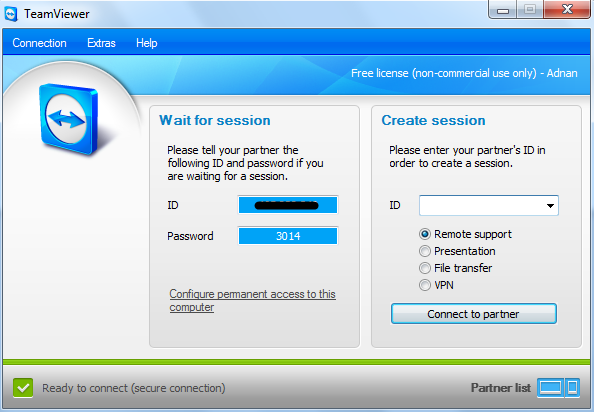
Team Viewer is a free software (for private users) which allows users to connect to a remote computer and perform operations as if you were there and all this is done with an easiest way ever known. You only need to install the software and run it. The software will automatically acquire an ID and password. The PC to which you want to connect is also required to do the same and that’s all. Now, you can give your ID and password to other people if you want them to connect to your PC or you can take some one’s else ID and connect to him. Yes, it’s that simple.

TeamViewer

The feature of team viewer which I like the most is it’s capability to take care of all the firewalls and other stuff. Secondly, some ISP give private IP to the end user which makes it’s difficult to connect to but in case of Team Viewer, even if you have a private IP assigned by your ISP, you get an ID. You don’t have to worry about IP addresses whether public or private.

In this latest version, you can now manage your partners list which allows you to view if your partner is online. If it is online, you can exchange instant messages as well.

Download Team Viewer

( write an email to the author of this post at adnan@techskipper.com )
How to Setup PC wifi to connect to IPHONE

I don’t have a built-in wifi device on my laptop, so last night I purchased a TP-Link wifi device for my PC to connect to iphone. I thought the process of setting up wifi is worth sharing since many face problem with it although the process is quite straight forward.

First thing to know is that we will connect PC wifi with iphone in ad-hoc configuration which can share the data among two PC Servers. our iphone will act as a PC here!

Ad-hoc mode

Let us discuss both PC and iphone configurations one by one.

Setup on PC:

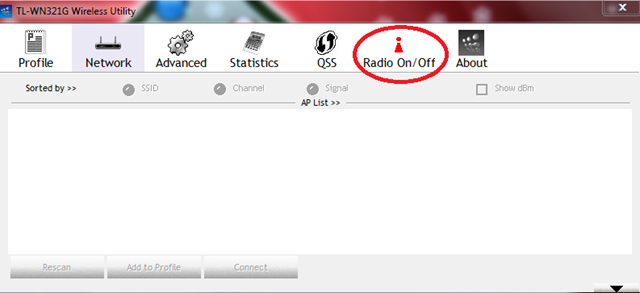
Step1: Connect your wifi device to your PC and make sure it’s Radio Signals are ON. I have TP-Link  WN321G device for which turning on radio is an easy task. Go to Start>>All Programs>>TP-LINK>>TL-WN321G Wireless Utility. (Make sure you have installed TP-Link drivers already. For windows XP, you will have to use the CD which comes with the device box while if you are using windows 7 then you are lucky because it will automatically download the drivers from an internet). After the utility window pops up, click “Radio ON/OFF” button to activate RF signals.

TurningONRadioSignals

If turned on, the radio button will turn green.

Note: For most devices the Radio will automatically be turned on. However, if you deactivate it by chance than you need to manually turn it ON or reset the device.

Step 2: Go to Start>>Control Panel>>Network and Sharing Center>>Manage Wireless Networks. In this window, click Add, the following window will appear. (That’s for windows 7, for users of XP, please go to network settings from control panel and choose wireless network setup)

CreateAdhocNetwork

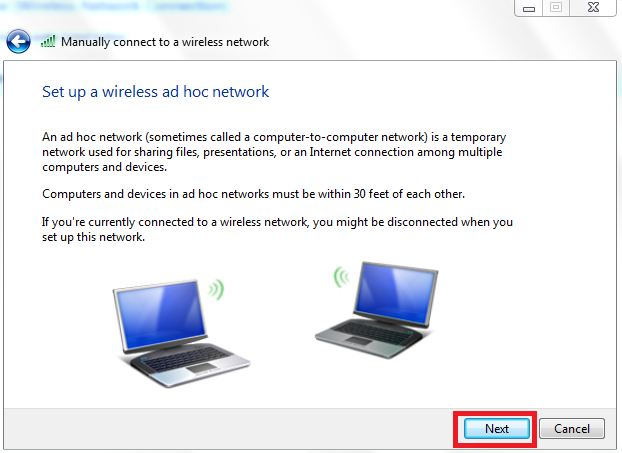
Choose "”Create an ad hoc network” as indicated by red rectangle above. The next window will show a little description of ad hoc networks. Click “Next”.

image

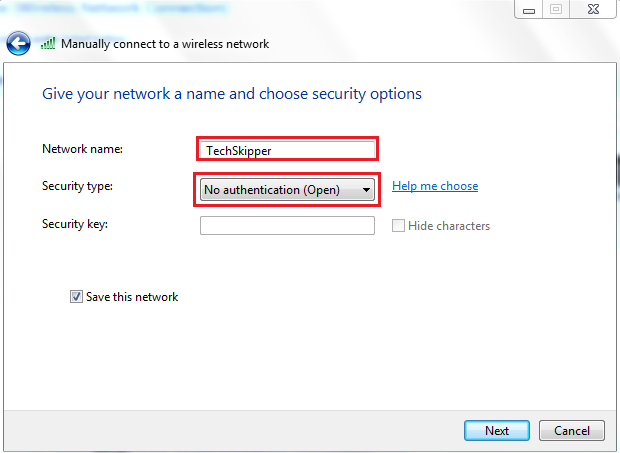
Step 3:  Choose the network name (Like TechSkipper) and choose Security type as “No authentication (open)”.

image

Note: We have set no authentication for simplicity only, you can choose other options if you want to add security password for your network.

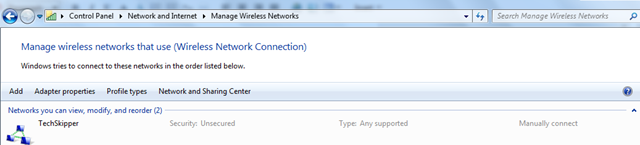
You can view this new network from the path Control Panel\Network and Internet\Manage Wireless Networks as shown below:

image

Let’s come to the setup on iphone.

Setup on iphone:

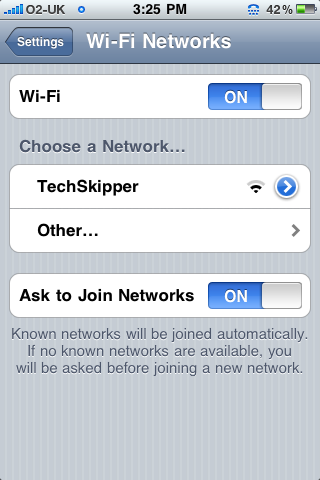
Step 1: Go to Settings>>WiFi and turn on the wifi. You will see the new network is automatically detected within seconds as shown below:

iphonewifi

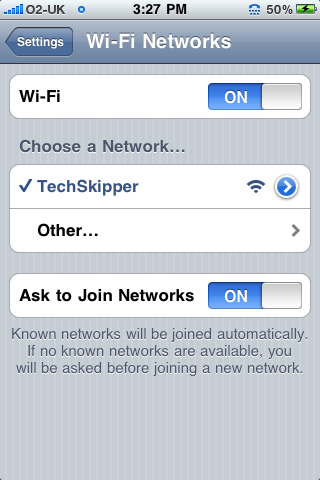
Tap on the “”TechSkipper" network and it will display a little tick mark showing that your iphone is now connected to your PC wifi.

Choosewifinetwork

Note: You can change the IP address of the connection by choosing arrow sign on the network.

( Write an email to the author of this post at adnan@techskipper.com )