How to Setup PC wifi to connect to IPHONE
I don’t have a built-in wifi device on my laptop, so last night I purchased a TP-Link wifi device for my PC to connect to iphone. I thought the process of setting up wifi is worth sharing since many face problem with it although the process is quite straight forward.
First thing to know is that we will connect PC wifi with iphone in ad-hoc configuration which can share the data among two PC Servers. our iphone will act as a PC here!

Let us discuss both PC and iphone configurations one by one.
Setup on PC:
Step1: Connect your wifi device to your PC and make sure it’s Radio Signals are ON. I have TP-Link WN321G device for which turning on radio is an easy task. Go to Start>>All Programs>>TP-LINK>>TL-WN321G Wireless Utility. (Make sure you have installed TP-Link drivers already. For windows XP, you will have to use the CD which comes with the device box while if you are using windows 7 then you are lucky because it will automatically download the drivers from an internet). After the utility window pops up, click “Radio ON/OFF” button to activate RF signals.
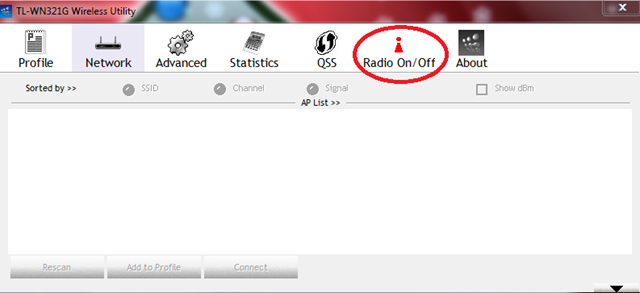
If turned on, the radio button will turn green.
Note: For most devices the Radio will automatically be turned on. However, if you deactivate it by chance than you need to manually turn it ON or reset the device.
Step 2: Go to Start>>Control Panel>>Network and Sharing Center>>Manage Wireless Networks. In this window, click Add, the following window will appear. (That’s for windows 7, for users of XP, please go to network settings from control panel and choose wireless network setup)

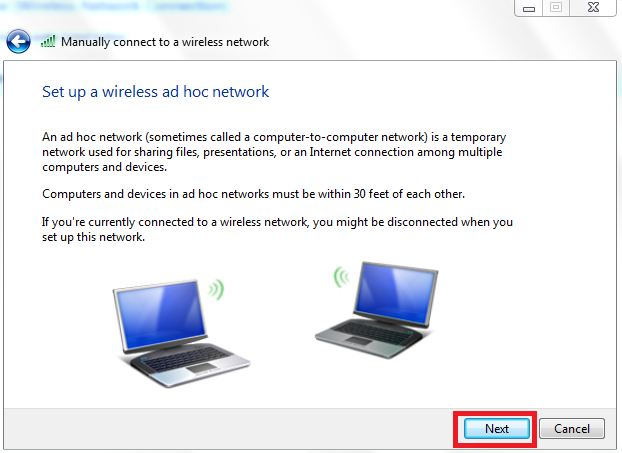
Choose "”Create an ad hoc network” as indicated by red rectangle above. The next window will show a little description of ad hoc networks. Click “Next”.
Step 3: Choose the network name (Like TechSkipper) and choose Security type as “No authentication (open)”.
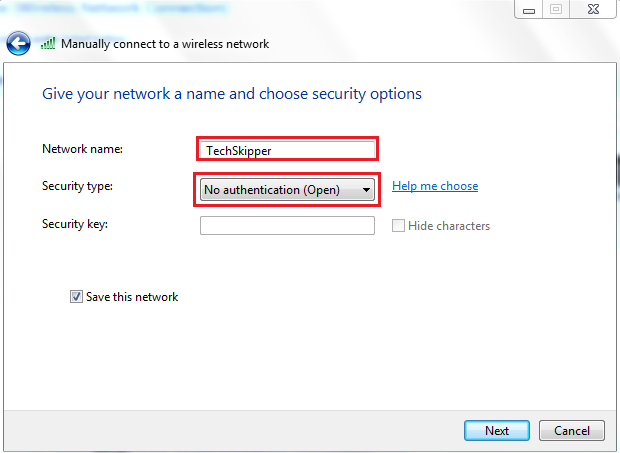
Note: We have set no authentication for simplicity only, you can choose other options if you want to add security password for your network.
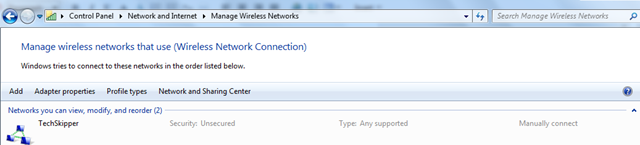
You can view this new network from the path Control Panel\Network and Internet\Manage Wireless Networks as shown below:
Let’s come to the setup on iphone.
Setup on iphone:
Step 1: Go to Settings>>WiFi and turn on the wifi. You will see the new network is automatically detected within seconds as shown below:
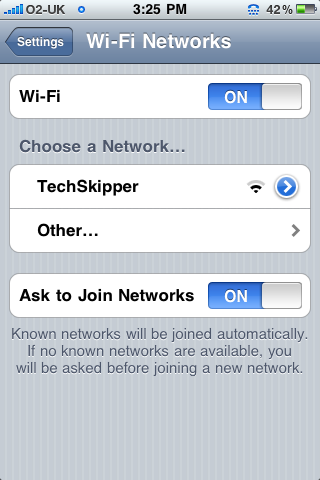
Tap on the “”TechSkipper" network and it will display a little tick mark showing that your iphone is now connected to your PC wifi.
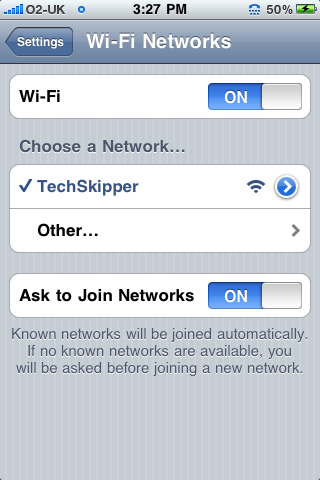
Note: You can change the IP address of the connection by choosing arrow sign on the network.
( Write an email to the author of this post at adnan@techskipper.com )
ad hoc, iphone wifi, TL, TP-Link
[…] connection automatically. I already described a detailed process of connecting PC wifi with iphone, you might want to have a look. One problem which I faced while using the software was that I was only receiving a small square […]