How to Setup Google Sync For iPhone
After a long wait and using bogus applications those were used to push Google notifications, Google has finally launched its push services and has implemented on their servers (services like Calendar, Mail and Contacts).

Google push services are compatible only with iPhone firmware 3.0 or above, so if you wish to use the service please make sure that the firmware running on your device is compatible. If you are using older version and want to jailbreak/unlock your device on firmware 3.1.2 check our post Jailbreak Unlock iPhone 3G 3GS 3.1.2 with Blackra1n. or if you wish to jailbreak/unlock your device on firmware 3.1.3 check our post How To – Jailbreak IPhone 3G 3GS 3.1.3 With Sn0wbreeze – V1.3
Step 1:
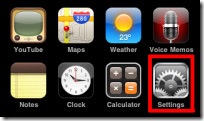
Tap on Settings application to open iPhone Settings.
Step 2:
In settings locate and tap on Mail, Contacts, Calendars

Step 3:
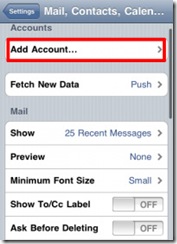
Tap on Add Account… in Accounts
Step 4:
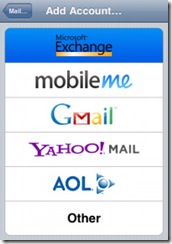
Tap on the first option Microsoft Exchange (you can have only ONE exchange account in your device)
Step 5:
Enter Email, Domain, Username and Password along with account Description and tap on Next on right top of your device’s screen.

EMAIL: Enter your gmail account in the following format: (youremail)@gmail.com or (youremail)@googlemail.com
DOMAIN: Leave Empty
Username: (your email) WITHOUT @gmail.com part or @googlemail.com
Password: Enter your Google’s account password.
Description: Anything that you prefer. For example: Gmail

Step 6:
After clicking Next in the last step you may receive an error message saying “Unable to Verify Certificate”. Just choose Accept and ignore this error message.

Step 7:
Now you will have a new field named “Server”. Type m.google.com for Server and press Next.

Step 8:
Turn on the services you wish to use while keeping unwanted services off and press Done.

Step 9:
At this stage you are almost done with your Google exchange server settings. After selecting your required service in the last step you will be asked “What would you like to do with existing local contacts on your iPhone”, you can keep them or delete as per your own requirement.

Step 10:
One important option that needs to be set is Fetch New Data, make sure it is set to PUSH

Taaraaaa you are done, now you can open Calendar, Contacts, or Mail to begin your first sync.
Follow us on Twitter @TechSkipper
Write an email to the author of this post at jawad@techskipper.com
Google Exchange account, how to, Jailbreak iPhone OS 3.1.2, Jailbreak iPhone OS 3.1.3, m.google.com, setup google mail
that’s very good website
I like the extensive information that you have here. Keep up the terrific work you do in maintaining this blog as edu blogs are often a target for spam comments. Have you ever considered submitting your blog to squidoo ?